
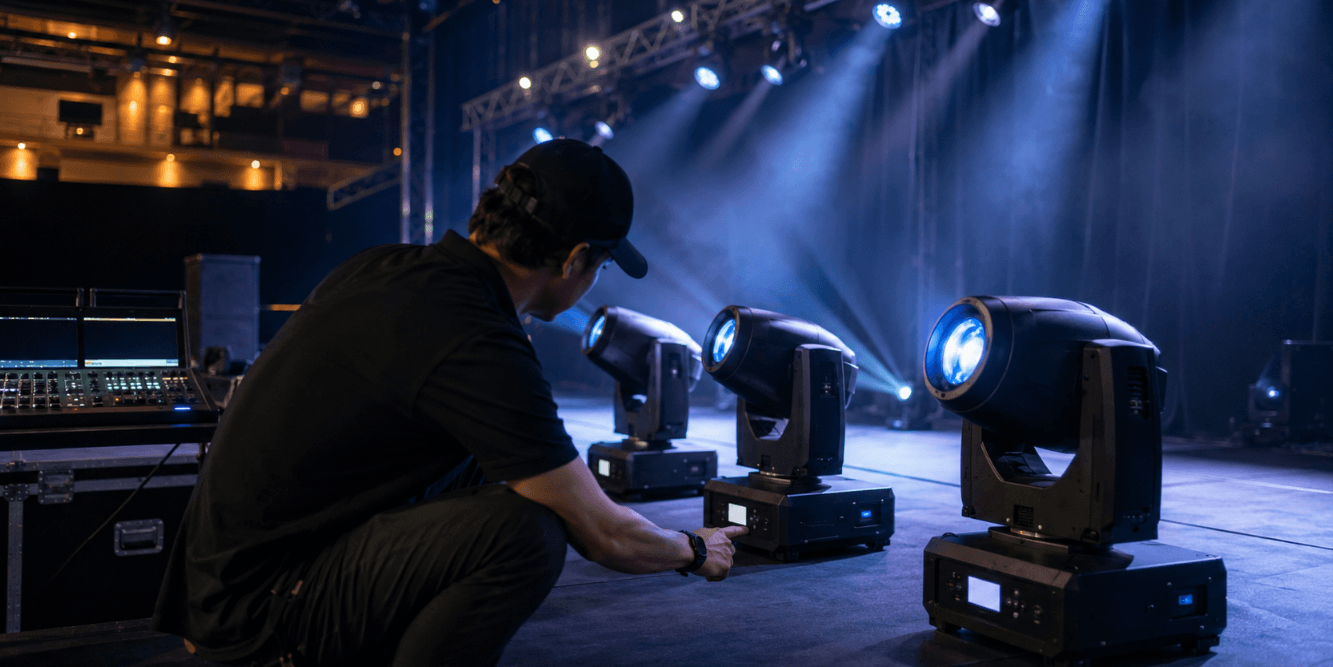
When several moving head lights are connected to the same DMX controller, they should respond in a predictable and consistent way. If one fixture shows a different color, moves at a different speed, fades differently, or reacts to the wrong control, the problem is not always a hardware fault.
In many cases, the cause is a DMX mode mismatch, an incorrect fixture profile, overlapping addresses, different menu settings, or version differences between fixtures. The key is to test the system step by step instead of guessing.
This guide helps you identify why moving head lights may not match in the same DMX setup and what to check before contacting technical support.

1. First Identify What Is Not Matching
Before changing settings, define the exact problem. “Not matching” can mean several different things.
Common symptoms include:
- One fixture shows a different color from the others
- One fixture moves faster or slower
- Pan or tilt positions do not match
- Dimmer fades are uneven
- A gobo, strobe, or prism reacts differently
- One fixture responds to the wrong fader
- One unit resets, flickers, or ignores DMX
- Only one fixture behaves incorrectly while the others work normally
This first step matters because different symptoms point to different causes. A wrong color may come from channel mode or fixture profile issues. Slow movement may come from speed settings or internal response curves. Random behavior may come from addressing, cabling, or DMX signal problems.
2. Check DMX Mode Before Anything Else
DMX mode should be the first thing you check.
Many moving head lights have multiple channel modes, such as basic mode, standard mode, extended mode, or advanced mode. If two fixtures are set to different DMX modes, the same controller data will not control the same functions.
For example, channel 6 might control color in one mode, but gobo or strobe in another mode. This can make the fixture look faulty even when it is only receiving the wrong channel information.
What to do:
- Open the menu on every fixture.
- Confirm that all matching fixtures are set to the same DMX channel mode.
- Check the manual and verify the channel chart.
- Restart the fixtures after changing mode if needed.
- Test the same cue again.
If the fixtures begin matching after this step, the issue was likely a mode mismatch.
3. Confirm DMX Addressing and Channel Overlap
Even if the DMX mode is correct, the start address must also be correct.
Each fixture needs enough channel space based on its selected mode. If one fixture starts too early or overlaps with another fixture, it may respond to data meant for a different light.
Example:
| Fixture | Mode | Start Address | Channel Range |
|---|---|---|---|
| Fixture 1 | 16CH | 001 | 001–016 |
| Fixture 2 | 16CH | 017 | 017–032 |
| Fixture 3 | 16CH | 033 | 033–048 |
If Fixture 2 is accidentally set to address 015, its channels will overlap with Fixture 1. That can cause strange movement, color changes, or unexpected effects.
What to do:
- Confirm the selected DMX mode
- Count the full channel range
- Make sure fixture addresses do not overlap
- Leave enough channel space between fixtures
- Retest with a simple dimmer/color cue
Addressing errors are common and can create problems that look much more serious than they are.
4. Check the Fixture Profile in Your Controller
A fixture profile tells the controller what each DMX channel does. If the profile does not match the actual fixture mode, the controller may show the right function name while sending the wrong value to the light.
This is especially important when using software, lighting consoles, or fixture libraries.
What to check:
- Is the selected fixture profile for the exact model?
- Does the profile match the selected DMX channel mode?
- Is the profile made for the same version of the fixture?
- Are color, gobo, strobe, dimmer, pan, and tilt channels mapped correctly?
- Does manual fader control match the channel chart?
A simple test is to control one channel at a time. If the controller says “red” but the fixture changes to green or activates another function, the profile may not match the fixture’s channel map.
5. Test One Fixture at a Time
Before comparing multiple fixtures, isolate one fixture.
Connect only one moving head to the controller and test basic functions:
- Dimmer
- Shutter
- Red, green, blue, white, or color wheel
- Pan and tilt
- Movement speed
- Gobo
- Strobe
- Reset
If one fixture works correctly alone but behaves strangely in a full chain, the issue may be addressing, cabling, signal chain, or programming.
If the fixture behaves incorrectly even when tested alone with the correct mode and profile, the issue may be inside the fixture or its settings.
6. Swap Address, Cable Position, and Physical Position
A useful troubleshooting method is to see whether the problem follows the fixture or stays with the setup position.
Try these tests:
| Test | What It Tells You |
|---|---|
| Swap DMX addresses | Checks whether the problem is in programming or fixture behavior |
| Swap cable position in the DMX chain | Checks whether the issue is signal-chain related |
| Swap physical stage position | Checks whether power, cable, or placement is involved |
| Use a different DMX cable | Checks cable reliability |
| Test the fixture directly from controller | Removes other fixtures from the chain |
If the same fixture still behaves differently after moving positions and changing addresses, the issue likely follows the fixture.
If the problem stays at the same address or cable position, the issue is probably in the setup.
7. Compare Menu Settings and Calibration
Two fixtures can be the same model but still have different internal settings.
Check these settings on each fixture:
- DMX mode
- Pan reverse / tilt reverse
- Pan/tilt speed
- Movement smoothing
- Dimmer curve
- Dimmer speed
- White balance or color calibration
- Fan mode
- Auto/sound/manual mode
- Reset or home position settings
Dimmer curve is often overlooked. Two fixtures may both be at 30%, but one may appear brighter because its dimmer curve responds differently at low values.
Movement settings can also affect matching. If one fixture has a slower pan/tilt speed setting or different smoothing behavior, it may lag behind the others even when receiving the same DMX value.
8. Understand Version, Batch, and Firmware Differences
Minor differences can happen between different production batches, firmware versions, or fixture revisions. This does not mean a fixture is automatically defective, but it does mean settings and profiles should be checked carefully.
Possible differences include:
- Updated channel logic
- Different color calibration
- Slight LED or lamp batch variation
- Different motor response
- Updated pan/tilt speed behavior
- Different dimmer curve
- Revised fixture profile requirements
This is especially relevant when adding new fixtures to an older setup. If older and newer fixtures do not match perfectly, compare the menu version, channel mode, and controller profile before assuming the light is faulty.
However, large differences should not be ignored. A correct setup should still produce controllable and reasonably consistent behavior.
9. When It May Be a Hardware Issue
After checking mode, address, profile, cable, and menu settings, some problems may point to a fixture fault.
Contact support if:
- One fixture still behaves incorrectly in single-unit testing
- Factory reset does not change the issue
- One color is missing or much weaker than expected
- Pan or tilt movement is jerky, stuck, or noisy
- The fixture resets by itself
- DMX input is unstable only on that unit
- The same problem follows the fixture across different cables, addresses, and positions
When contacting support, send useful information:
- Order number
- Fixture model
- DMX mode
- Start address
- Controller or software used
- Short video of the issue
- Photo or video of the fixture menu version if available
This helps technical support identify whether the issue is setup-related, profile-related, or hardware-related.
Practical Troubleshooting Checklist
| Step | What to Check | Result |
|---|---|---|
| 1 | Same DMX mode on all fixtures | Prevents channel mismatch |
| 2 | Correct start address | Prevents overlap |
| 3 | Correct fixture profile | Prevents wrong channel mapping |
| 4 | Single-fixture test | Isolates the fixture |
| 5 | Swap address and cable position | Finds setup vs fixture issue |
| 6 | Compare menu settings | Finds hidden setting differences |
| 7 | Factory reset if needed | Removes unknown settings |
| 8 | Record video for support | Speeds up diagnosis |
FAQ
Do identical moving heads always match perfectly?
They should behave consistently when set up correctly, but small differences can occur due to calibration, batch, firmware, or light-source variation.
Can a wrong fixture profile cause colors to mismatch?
Yes. If the profile does not match the fixture’s DMX mode or version, color channels may be mapped incorrectly.
Why does one moving head move slower than the others?
Check pan/tilt speed, movement smoothing, DMX mode, and fixture profile. Motor response or firmware differences may also affect movement.
Should I factory reset the fixture?
Yes, if you suspect hidden settings are different. After reset, set the DMX mode and address again before testing.
When should I contact support?
Contact support when the issue follows the same fixture after single-unit testing, cable swaps, address changes, and factory reset.
Final Advice
When moving head lights do not match in the same DMX setup, do not start by assuming the fixture is defective. Start with the controllable basics: DMX mode, address, fixture profile, cable position, and menu settings.
If the difference is minor, it may come from calibration, version, or batch variation. If the difference is large, repeatable, and follows the same fixture after testing, it should be reviewed by technical support.
For stage lighting fixtures, DMX setup guidance, and support resources, visit Betopper’s official website:
https://betopperdj.com/

Hinterlasse einen Kommentar
Alle Kommentare werden vor der Veröffentlichung geprüft.
Diese Website ist durch hCaptcha geschützt und es gelten die allgemeinen Geschäftsbedingungen und Datenschutzbestimmungen von hCaptcha.