
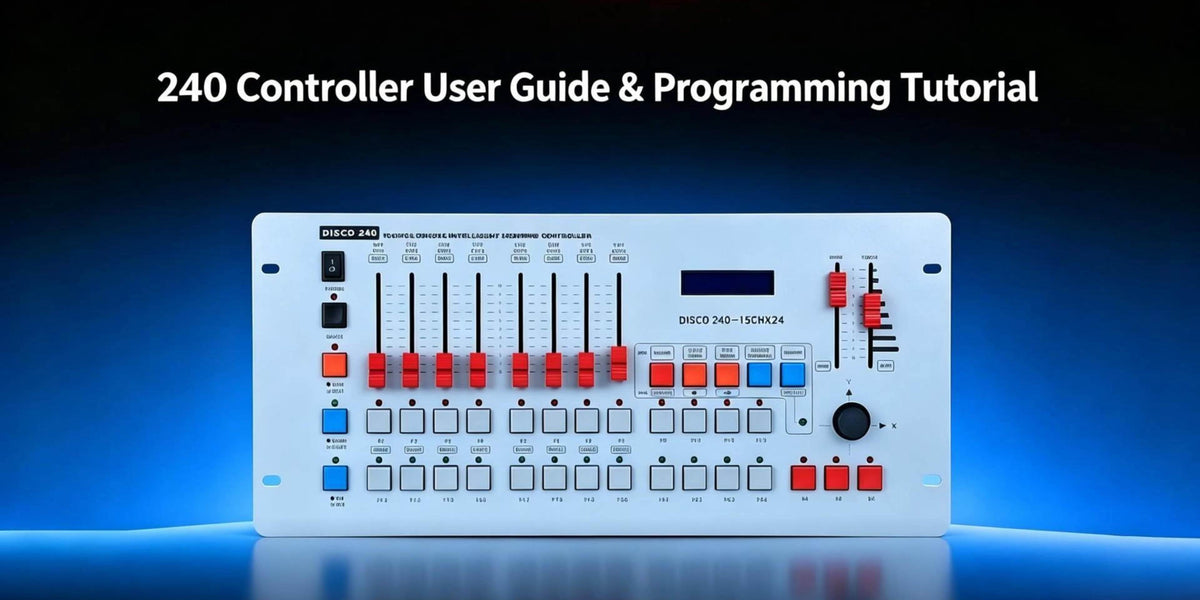
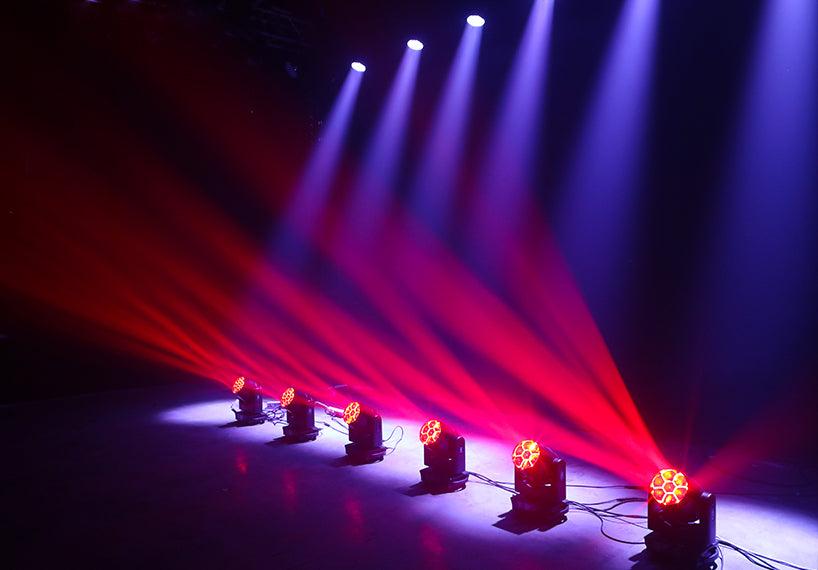
In the previous tutorials, we've covered the basic controls and setup of the DMX 240 controller. In this article, we'll take the next step and show you how to program a Beam light chase effect by setting different colors for individual fixtures and saving them as a sequence.
What You'll Learn
In this episode, we'll cover:
- How to select a program position
- How to program Beam lights one at a time
- How to set a different color for each fixture
- How to save each step with the Add button
- How to recall the programmed effect
- How to adjust the program speed
Equipment Used

Before You Start
Turn on the DMX 240 controller and make sure your Beam lights are connected and ready to control.
For this tutorial, we'll program the fixtures one at a time so that each fixture becomes part of the chase sequence.
How a Beam Light Chase Program Works
A chase program is built by saving individual lighting steps in sequence.
For this example, each Beam light is programmed separately. You select one fixture, set its color, and save that step. Then you move to the next fixture and repeat the process.
Once all the steps have been saved, the program can be recalled and played back as a sequence.
Step-by-Step: Program a Beam Light Chase
Step 1: Select the Program Position
First, turn on the DMX 240 controller.
Select P1, which is the program position used to save the lighting sequence.
Step 2: Select and Turn On the Fixtures
Start selecting the fixtures in order.
Push the Strobe and Dimmer channel faders to the top so the fixtures turn on.
Once the fixtures are on, turn off the other three fixtures and leave the first fixture active for programming.
Step 3: Program the First Fixture
With the first Beam light active, use the Color channel fader to select the color you want.
Once the color is set, press the Add button to save the step.
Then pull the faders back down.
Step 4: Program the Second Fixture
Turn on the second fixture and turn off the first fixture.
First turn the fixture on, then use the Color channel fader to select the color you want.
Press Add again to save the second step.
Then continue to the next fixture.
Step 5: Repeat for the Remaining Fixtures
Continue the same process for the remaining fixtures:
Turn on the fixture → set the color → press Add → reset the controls.
Repeat until all the required fixtures have been programmed.

Step 6: Exit Edit Mode and Run the Program
After all the lighting steps have been saved, turn off the Edit function and reset the controls.
Then select the program position to recall the programmed lighting effect.
The saved lighting sequence will now run.
Step 7: Adjust the Program Speed
Once the program is running, use the two faders in the upper-right area of the controller to adjust the program speed.
Push the fader higher to make the program run faster.
Push it lower to slow the program down.
Tips for Programming a Cleaner Chase
The key to this type of chase is to program each fixture separately and save each step before moving to the next fixture.
A simple workflow to remember is:
Select P1 → Select Fixture → Set Color → Add → Reset → Next Fixture → Repeat → Exit Edit → Run Program → Adjust Speed
Once the steps have been saved, you can control the overall pace of the sequence using the speed controls.
Wrapping Up
In this article, we covered how to program a Beam light chase effect with the DMX 240 controller—from setting different colors for individual fixtures and saving each step with the Add button to recalling the program and adjusting its speed.
If you’re new to the DMX 240 controller, check out the previous tutorials in the Betopper DMX 240 Controller Tutorial Series to learn the basic controls and setup before moving on to more advanced programming.
Continue exploring the Betopper DMX 240 Controller Tutorial Series and learn more ways to create and control your lighting effects.

コメントを残してください
全てのコメントは、掲載前にモデレートされます
このサイトはhCaptchaによって保護されており、hCaptchaプライバシーポリシーおよび利用規約が適用されます。