




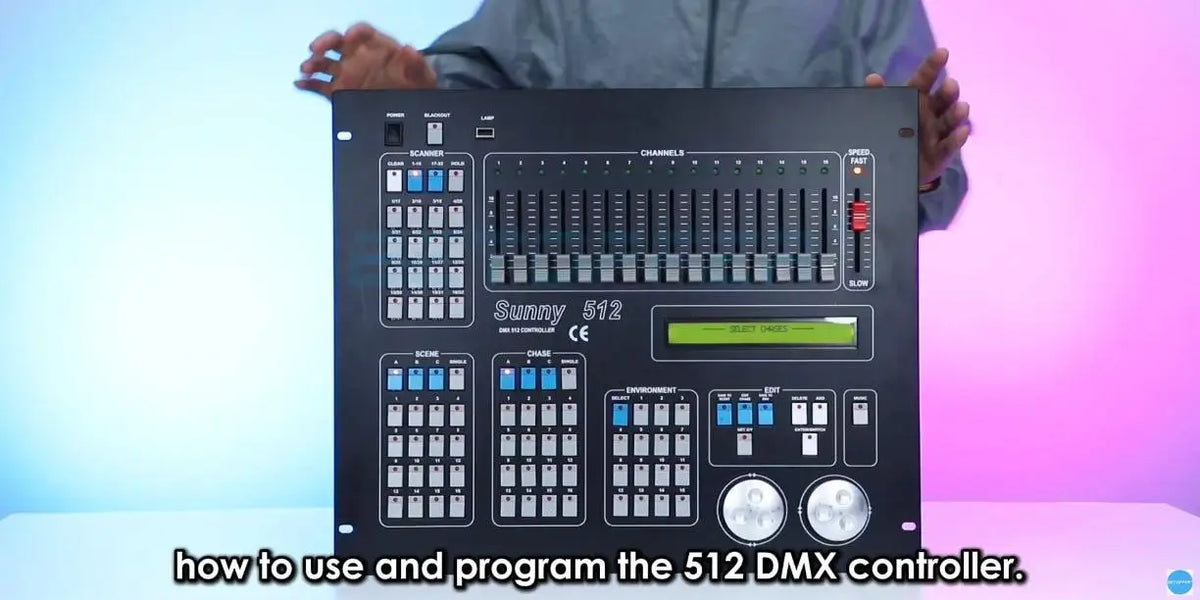
A DMX 512 controller can look complicated when you first see the control panel. With multiple fixture buttons, channel faders, scenes, chases, control wheels, and playback controls, it can be difficult to know where to start.
In this first tutorial, we'll break down the DMX 512 controller panel and explain the main control sections and what they are used for. Understanding these controls is the first step toward controlling moving heads, PAR lights, and other DMX fixtures.

Scanner Buttons
The Scanner buttons are used to select the fixture you want to control. Once a fixture is selected, its assigned DMX channels can be adjusted using the channel faders.
Channel Faders
The controller provides 16 channel faders for adjusting the DMX values of the selected fixture. What each fader controls depends on the fixture's DMX channel assignment. Depending on the fixture, channels may control functions such as dimmer, strobe, color, gobo, prism, pan, tilt, and other effects.
Scene & Chase
Scene buttons are used to save and recall programmed lighting states. A Chase is a sequence made from multiple programmed steps that can be played back in order.
Environment
The Environment section allows programmed lighting settings to be stored and recalled as a complete setup.
X/Y Modulation Wheels
The two control wheels can be assigned to the X and Y movement channels of compatible moving-head fixtures, making pan and tilt control easier than using individual faders.
Add, Delete & Edit Chase
When creating a Chase, Add is used to save a lighting step, Delete removes a step, and Edit Chase is used to enter or exit Chase editing.
Speed, Music & Blackout
The Speed control adjusts the playback speed of a Chase. Music allows the Chase to follow the music rhythm, while Blackout provides a quick way to turn the lighting output off.
Once you understand these main sections, the DMX 512 controller becomes much easier to navigate. From here, you can start learning how to select fixtures, adjust individual DMX channels, create scenes, and program lighting sequences.
Controller: Betopper DMX Console 512


Leave a comment
This site is protected by hCaptcha and the hCaptcha Privacy Policy and Terms of Service apply.