








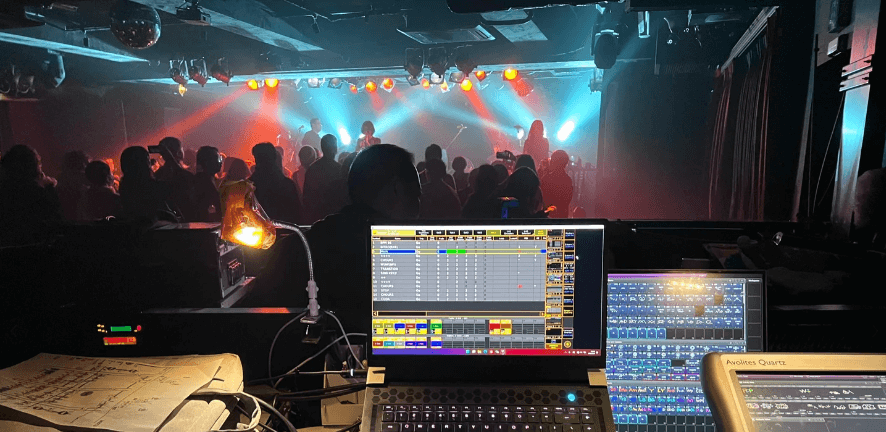
If your stage light isn’t responding to DMX control, don’t panic. This is one of the most common issues lighting techs, DJs, and event professionals run into — and in most cases, it’s not a hardware failure.
Whether you're running moving heads, PAR lights, or wash fixtures, DMX issues are usually caused by incorrect settings, cabling problems, or controller configuration — all of which can be fixed quickly once you know what to check.
This guide walks you through the most common causes and how to troubleshoot them step by step.

How DMX Control Actually Works
Before troubleshooting, it helps to understand how DMX communication works.
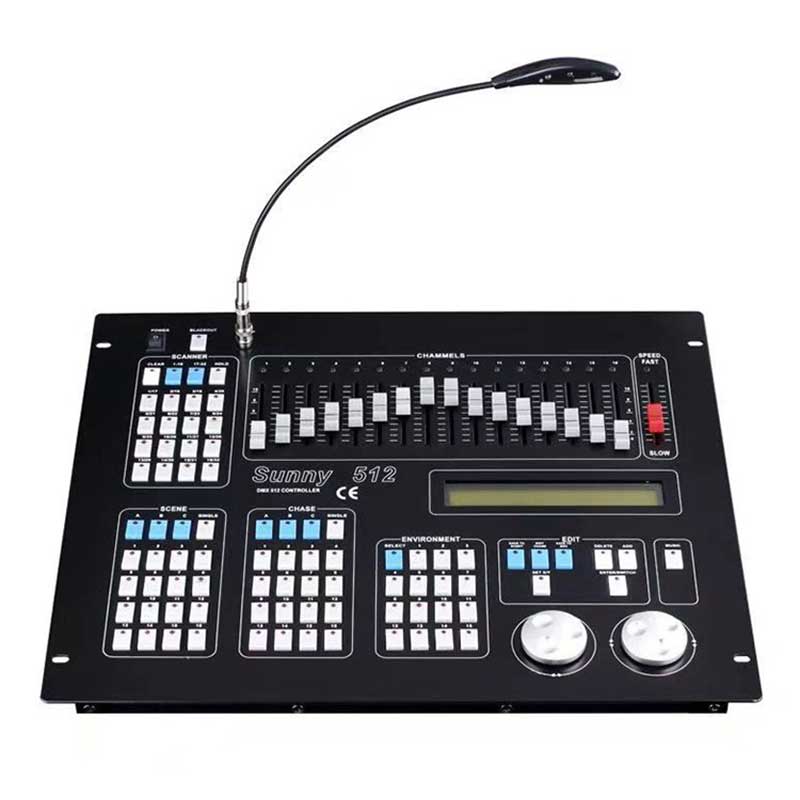
DMX512 is the standard protocol used to control stage lighting. Your controller sends digital signals through a DMX cable, and each fixture responds based on its assigned DMX address.
Think of it like a mailing system.
Your controller sends commands to specific addresses. If a fixture isn’t set to the correct address, it won’t respond — even though everything else is connected properly.
A typical DMX signal chain looks like this:
Controller → DMX Cable → Fixture → Fixture → Fixture
If anything in that chain is misconfigured or interrupted, fixtures may stop responding.
Fixture Settings — The Most Common Cause
Incorrect fixture settings are the number one reason lights don’t respond to DMX.
Make Sure the Fixture Is in DMX Mode
Most fixtures support multiple operating modes, including:
- Auto mode
- Sound-active mode
- Master/slave mode
If your fixture is in one of these modes, it will ignore DMX commands.
Go into the fixture menu and confirm it’s set to:
- DMX Mode or DMX512 Mode
You should see an address displayed, such as:
- A001
- d001
This confirms the fixture is ready to receive DMX.
Check the DMX Address
Your controller and fixture must use matching addresses.
For example:
- Controller expects fixture at address 001
- Fixture is set to address 100
The fixture won’t respond.
Make sure the fixture address matches what your controller is controlling.
Confirm the Channel Mode Matches
Many fixtures offer multiple channel modes, such as:
- 8-channel mode
- 16-channel mode
- 24-channel mode
If your fixture is set to 16-channel mode but your controller profile is set for 8-channel mode, the control won’t work correctly.
Always match the fixture’s channel mode with the controller profile.
DMX Cable and Connection Problems
Cabling issues are one of the most common reasons stage lights fail to respond to DMX control.
Using Microphone Cables Instead of DMX Cables
This mistake happens more often than you might expect.
DMX cables and XLR microphone cables look identical, but they are designed for different purposes. Microphone cables are built for analog audio signals, while DMX cables are specifically designed for digital data transmission.
Using microphone cables in a DMX system can cause:
- Fixtures not responding
- Flickering or unstable behavior
- Intermittent signal loss
Always use proper DMX cables designed for lighting control.
Using high-quality cables and fixtures designed for stable DMX communication helps prevent these issues. Fixtures engineered with reliable DMX input and output circuitry — such as Betopper’s professional lighting fixtures — maintain consistent signal flow even in complex setups.
Check Cable Direction and Connections
DMX is directional.
Correct:
- Controller DMX OUT → Fixture DMX IN
- Fixture DMX OUT → Next Fixture DMX IN
Incorrect connections will prevent signal transmission.
Test for Faulty Cables or Ports
Cables fail. Connectors wear out.
Try:
- Swapping the DMX cable
- Connecting only one fixture directly to the controller
- Using a different DMX output on your controller
This helps isolate the problem.
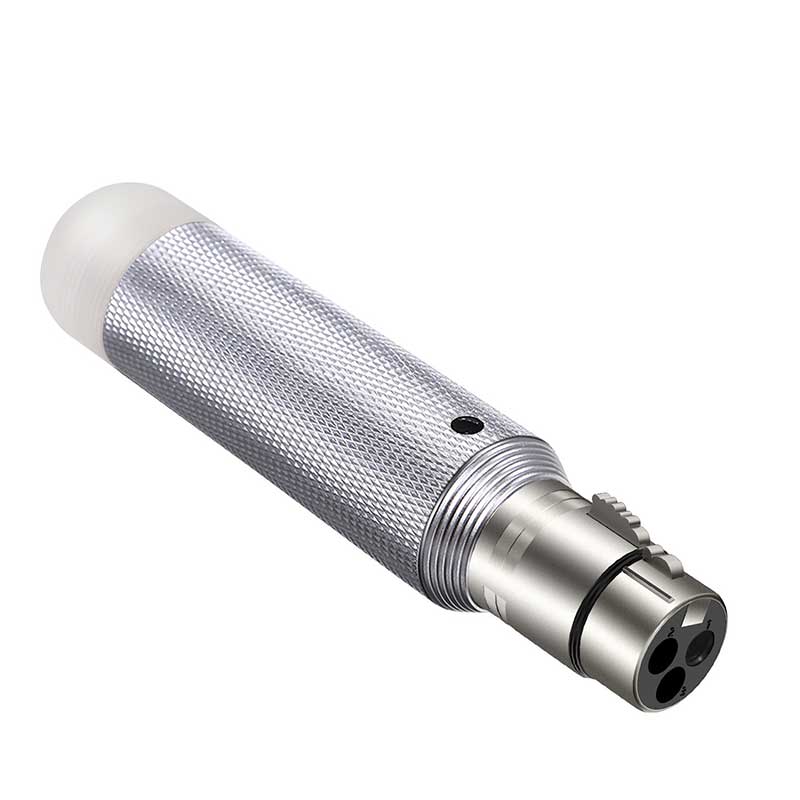
Consider Using a DMX Terminator
If you're running multiple fixtures or long cable runs, signal reflections can cause instability.
A DMX terminator plugged into the last fixture helps stabilize the signal.
This is standard practice in professional setups.
Controller Configuration Issues
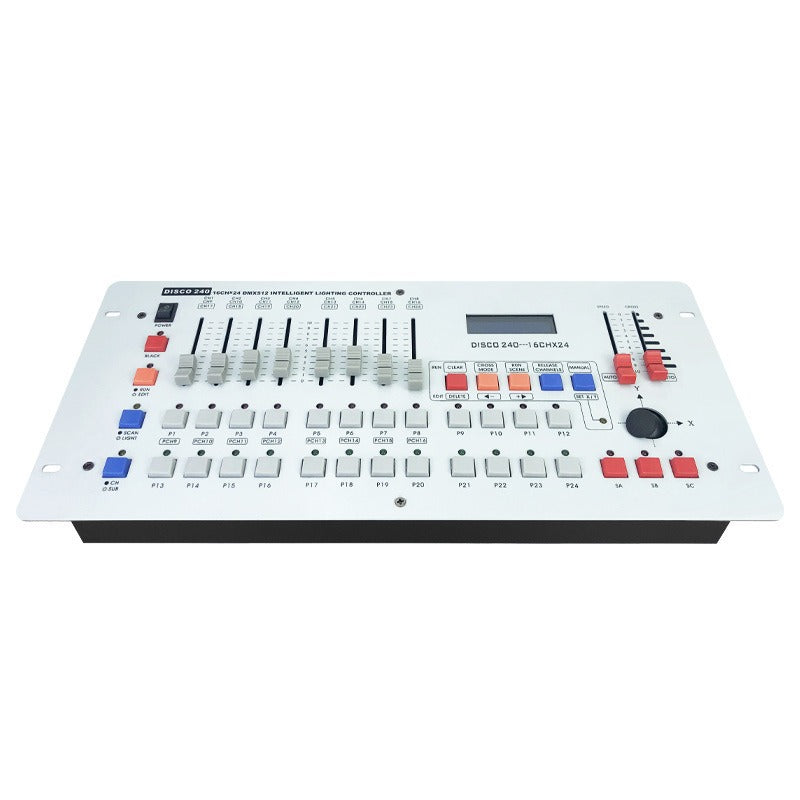
Sometimes the issue isn’t the fixture — it’s the controller setup.
Make Sure the Correct Fixture Profile Is Loaded
Controllers use fixture profiles to know how to control each light.
If the wrong profile is loaded, your controller may send incorrect commands.
Always select the correct fixture model and channel mode.
Check Master Fader and Blackout
This is an easy one to miss.
Make sure:
- Master fader isn’t at zero
- Blackout isn’t active
- DMX output is enabled
These settings can disable all output.
Verify Address Range and Universe Settings
Make sure your fixtures are assigned to addresses within the active universe and range.
Otherwise, your controller won’t communicate with them.
Quick Troubleshooting Checklist
If your light isn’t responding, follow this sequence:
-
Step 1
Confirm fixture is in DMX mode -
Step 2
Verify DMX address matches controller -
Step 3
Replace the DMX cable -
Step 4
Connect one fixture directly to the controller -
Step 5
Confirm correct fixture profile is loaded -
Step 6
Test fixture in Auto mode
If Auto mode works but DMX doesn’t, the issue is likely configuration or signal-related — not hardware failure.
If you're troubleshooting older fixtures or planning to upgrade your setup, using fixtures designed with reliable DMX implementation can significantly reduce signal and compatibility issues.
Modern fixtures, such as Betopper DMX lighting fixtures, are built to ensure stable control, accurate response, and compatibility with major DMX controllers.
View all DMX-compatible fixtures here:
https://betopperdj.com/collections
How to Prevent DMX Problems in the Future
Reliable DMX performance comes down to using proper equipment and setup practices.
Use Fixtures That Fully Support DMX512
Reliable DMX performance starts with fixtures that are fully compliant with the DMX512 standard. Professional-grade stage lights are specifically engineered to maintain stable communication with industry-standard controllers such as:
- MA Lighting consoles
- Avolites consoles
- Chauvet ShowXpress software
- Wolfmix controllers
Fixtures that properly support DMX512 ensure stable signal transmission, accurate control, and seamless compatibility across different lighting systems.
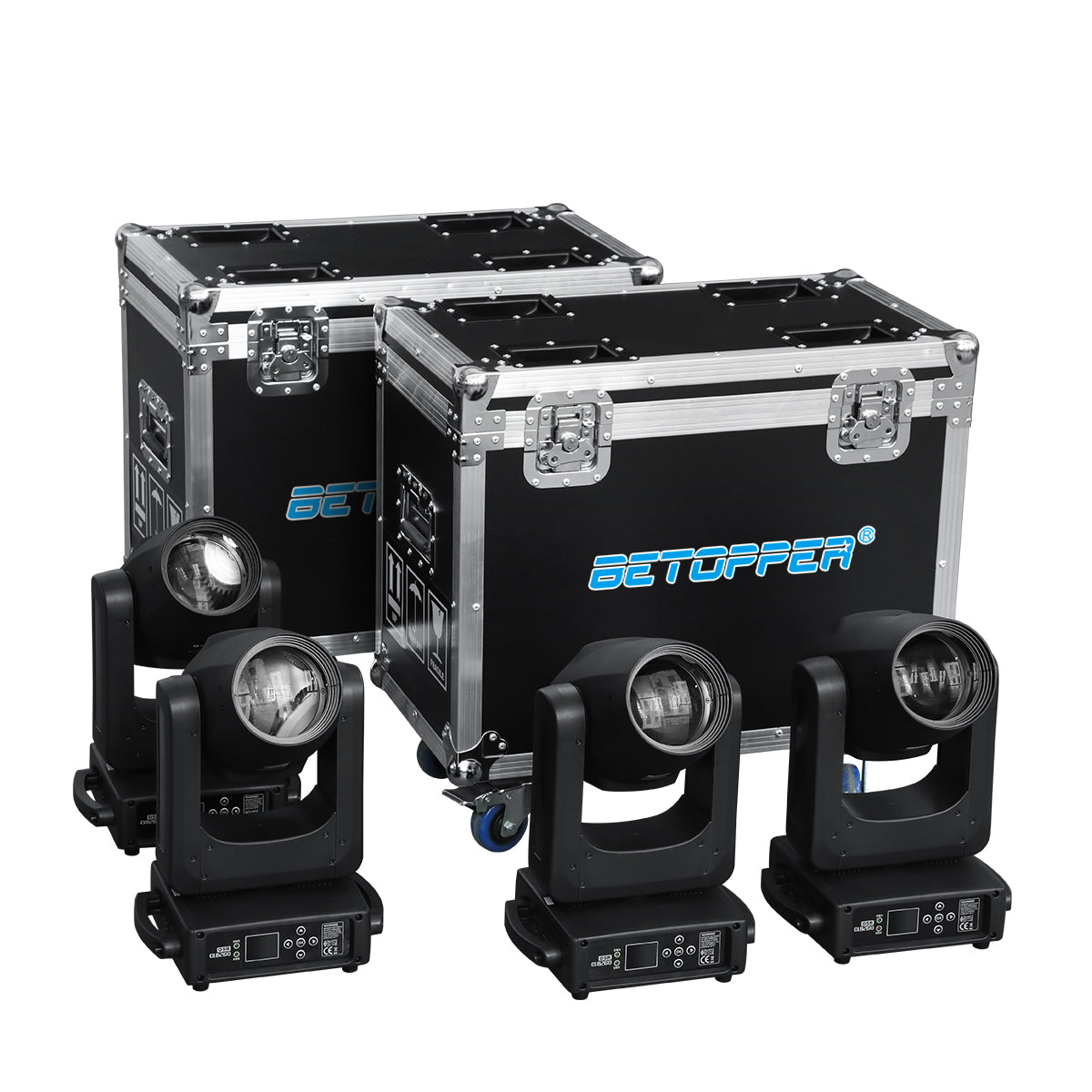
For example, professional moving head fixtures from Betopper are designed with full DMX512 compatibility in mind. This ensures consistent communication, precise response, and smooth integration into both small and large lighting setups.
You can explore Betopper’s professional DMX-compatible moving head fixtures here:
https://betopperdj.com/collections/moving-head-lights
Choosing fixtures that fully support the DMX512 standard helps minimize communication issues and improves the overall stability and reliability of your lighting system.
Use Proper DMX Cables
Avoid low-quality or audio cables. Dedicated DMX cables improve signal integrity and reliability.
Plan Your Address Layout
Assign logical addresses and document them.
This prevents conflicts and setup confusion.
Perform Regular System Checks
Inspect cables, connectors, and settings regularly to catch problems early.
When to Contact Support
If you've confirmed:
- Fixture is in DMX mode
- Address is correct
- Cables are good
- Controller is configured properly
and the fixture still doesn’t respond, there may be a hardware issue.
Contact the manufacturer’s support team for further assistance.
Final Thoughts
Most DMX issues come down to setup, signal, or configuration — and can be resolved quickly with the right troubleshooting approach.
Using reliable, DMX-compatible fixtures helps ensure consistent control and smooth performance every time.
Explore Betopper’s professional lighting solutions:
https://betopperdj.com/

Leave a comment
This site is protected by hCaptcha and the hCaptcha Privacy Policy and Terms of Service apply.